 Interval Versions




Choose a Project
Financial Inclusion and Money Advice: Case Outcomes Record is used by 0 projects across your organisations.

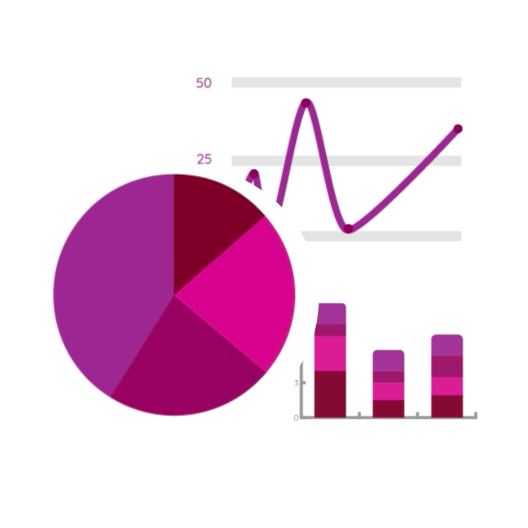
Explore bar charts, pie charts and outcome rings. Download graphs, export raw results and see tabulated responses to each question.
Understand how people’s answers change over time. Browse a table showing a row for each respondent and a column for each question time a question has been answered.
See the scores and verdicts from survey responses over time. See whose improved, worsened or stayed the same and the mean averages.
About
| Uploaded by: | Makerble Templates |
Completed by the adviser as the case progresses and when it closes: crisis actions and the financial gains achieved.
Similar Surveys
-
<div>This brief questionnaire asks about some of the most commonly reported thoughts, f...
Section – Crisis Stabilisation
Q1.
Urgent Issues Resolved (single choice)
Urgent Issues Addressed - Has the most urgent financial issue been addressed?
| Yes | Partially | No | Not applicable |
Dropdown List used: Urgent Issues Resolved - 4 options
Q2.
Debt Acknowledged and Quantified (single choice)
Has the total debt been identified and recorded?
| Yes | No |
Dropdown List used: Yes / No - 2 options
Q3.
Debt Management Plan in Place (single choice)
Is there now an agreed plan with creditors?
| Yes | In progress | No |
Dropdown List used: Debt Management Plan in Place - 3 options
Q4.
Benefits Claimed
Number of benefit claims made or supported
Q5.
Eviction or Repossession Prevented (single choice)
Was eviction or repossession threatened and prevented?
| Yes | No | Not applicable |
Dropdown List used: Eviction or Repossession Prevented - 3 options
Q6.
Utility Disconnection Prevented (single choice)
Were utilities (gas, electric, water) threatened and reconnection secured?
| Yes | No | Not applicable |
Dropdown List used: Utility Disconnection Prevented - 3 options
Section – Financial Gains
Q7.
Debt Reduced
Debt reduced since first contact (£)
Q8.
Debt Written Off
Debt written off (£)
Q9.
Monthly Debt Repayments
Monthly debt repayments (£)
Q10.
Income Increased
Increase in monthly income (£ per month)
Q11.
Benefits Secured
New benefits secured (£ per month)
Section – Six Months On
Q12.
Still in Debt Management Plan (single choice)
Is the client still adhering to their debt management plan?
| Yes | Plan completed | Plan failed | Other arrangement |
Dropdown List used: Still in Debt Management Plan - 4 options
Q13.
No Crisis Re-Presentation (single choice)
Has the client returned to the service in crisis?
| No | Yes - for new issue | Yes - for same issue |
Dropdown List used: No Crisis Re-Presentation - 3 options
Q14.
Income Sustained
Income increase still in place (£ per month)
Q15.
Savings Maintained or Grown
Savings now (£)
Collect survey responses

360°
 360°

Universal
 Universal

Tracked
 Tracked

Anonymised
Anonymised

Import
 Import

API
 API

Filled in by a Colleague: 1 contact at a time
Filled in by a Colleague: 1 contact at a time

Filled in by a Colleague: Several at once
 Filled in by a Colleague: Several at once

Filled in by a Colleague: Manual Headcount
 Filled in by a Colleague: Manual Headcount

Universal Manual Headcount
 Universal Manual Headcount

Multi-stage
 Multi-stage

Branded Portal
 Branded Portal

Automation
 Automation

360° Assessment
360° Assessment