 Interval Versions




Choose a Project
Local Action Groups: Campaign Log is used by 0 projects across your organisations.

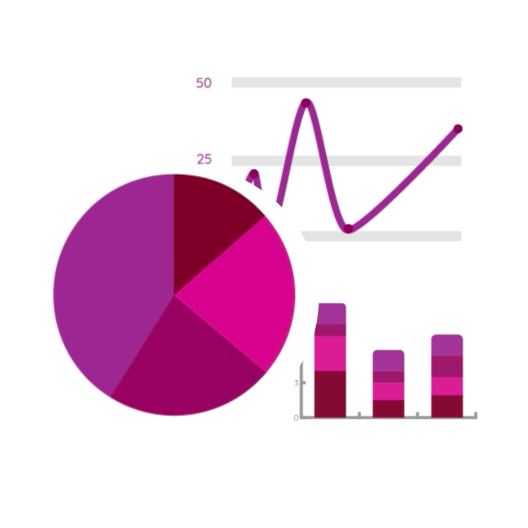
Explore bar charts, pie charts and outcome rings. Download graphs, export raw results and see tabulated responses to each question.
Understand how people’s answers change over time. Browse a table showing a row for each respondent and a column for each question time a question has been answered.
See the scores and verdicts from survey responses over time. See whose improved, worsened or stayed the same and the mean averages.
About
| Uploaded by: | Makerble Templates |
Kept by the campaign lead for each campaign: launch details, quarterly progress and the outcome and impact at the end.
Similar Surveys
-
<div>This scale assesses “relational authenticity”, meaning the attitudes people have a...
-
<div>The Berkman-Syme Social Network Index (SNI) is a self-reported questionnaire for u...
-
<div>The Changes in Outlook Questionnaire (CiOQ) is a 26-item self-report instrument. I...
Section – At Launch
Q1.
Campaign name and goal (Text)
This question will appear once within your story or survey response.
Q2.
Campaign start date (Date)
This question will appear once within your story or survey response.
Section – Progress (update quarterly)
Q3.
Campaign Stage (single choice)
Campaign Stage
| Launched | Building momentum | Decision pending | Won | Partially won | Lost | Ongoing |
Dropdown List used: Campaign Stage - 7 options
Q4.
Campaign Milestones Achieved (unlimited multiple choice)
Campaign Milestones Achieved
| Research and evidence gathered | Community support mobilized (petition/supporters) | Media coverage achieved | Decision-makers engaged (met with council, MP, company) | Public pressure applied (protest, demonstration, letter campaign) | Alternatives proposed (not just opposition - positive vision) | Coalition built (partner organizations) |
Dropdown List used: Campaign Milestones Achieved - 7 options
Q5.
People Taking Action
People who took action in this campaign (signatures, attendees, participants)
Q6.
Decision-Maker Response (single choice)
Decision-Maker Response
| Engaged constructively | Defensive but responsive | Unresponsive | Hostile |
Dropdown List used: Decision-Maker Response - 4 options
Section – Outcome
Q7.
Campaign Outcome (single choice)
Campaign Outcome
| Won | Partially won | Lost | Ongoing |
Dropdown List used: Campaign Outcome - 4 options
Q8.
Planning Application Rejected (single choice)
Planning Application Rejected
| Yes | No |
Dropdown List used: Yes / No - 2 options
Q9.
Inappropriate Development Stopped (single choice)
Inappropriate Development Stopped
| Yes | No |
Dropdown List used: Yes / No - 2 options
Q10.
Policy Changed (single choice)
Policy Changed
| Yes | No |
Dropdown List used: Yes / No - 2 options
Q11.
Climate Emergency Declared (single choice)
Climate Emergency Declared
| Yes | No |
Dropdown List used: Yes / No - 2 options
Q12.
Cycling Infrastructure Improved (single choice)
Cycling Infrastructure Improved
| Yes | No |
Dropdown List used: Yes / No - 2 options
Q13.
Pesticide Use Banned in Parks (single choice)
Pesticide Use Banned in Parks
| Yes | No |
Dropdown List used: Yes / No - 2 options
Q14.
Polluter Fined or Forced to Clean Up (single choice)
Polluter Fined or Forced to Clean Up
| Yes | No |
Dropdown List used: Yes / No - 2 options
Q15.
Company Changed Practice (single choice)
Company Changed Practice
| Yes | No |
Dropdown List used: Yes / No - 2 options
Q16.
Service Cut Reversed (single choice)
Service Cut Reversed
| Yes | No |
Dropdown List used: Yes / No - 2 options
Q17.
Community Asset Saved (single choice)
Community Asset Saved
| Yes | No |
Dropdown List used: Yes / No - 2 options
Section – Impact
Q18.
Green Space Protected
Green space protected (hectares)
Q19.
Carbon Emissions Avoided
Carbon emissions avoided (tonnes CO2e, if calculable)
Q20.
Pollution Reduced (single choice)
Has pollution been reduced as a result of this campaign?
| Yes | Somewhat | No |
Dropdown List used: Yes, Somewhat or No - 3 options
Q21.
Biodiversity protected (Text)
This question will appear once within your story or survey response.
Q22.
People Directly Benefited
People directly benefited
Q23.
Housing Rights Protected
People or homes whose housing rights were protected
Q24.
Justice advanced (Text)
This question will appear once within your story or survey response.
Section – Learning
Q25.
What worked (Text)
This question will appear once within your story or survey response.
Q26.
What didn't work (Text)
This question will appear once within your story or survey response.
Collect survey responses

360°
 360°

Universal
 Universal

Tracked
 Tracked

Anonymised
Anonymised

Import
 Import

API
 API

Filled in by a Colleague: 1 contact at a time
Filled in by a Colleague: 1 contact at a time

Filled in by a Colleague: Several at once
 Filled in by a Colleague: Several at once

Filled in by a Colleague: Manual Headcount
 Filled in by a Colleague: Manual Headcount

Universal Manual Headcount
 Universal Manual Headcount

Multi-stage
 Multi-stage

Branded Portal
 Branded Portal

Automation
 Automation

360° Assessment
360° Assessment