 Interval Versions




Choose a Project
Training and Professional Development: 3-Month Follow-Up is used by 0 projects across your organisations.

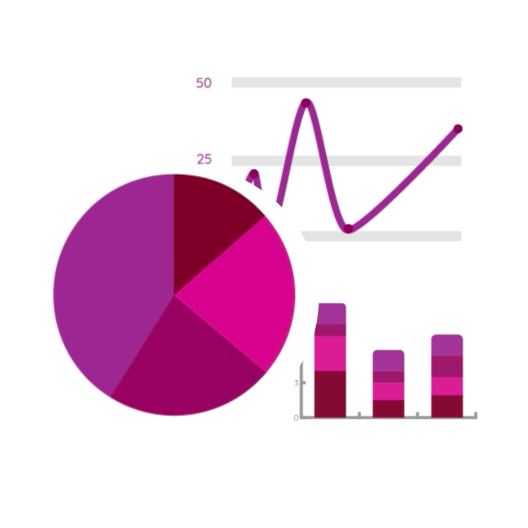
Explore bar charts, pie charts and outcome rings. Download graphs, export raw results and see tabulated responses to each question.
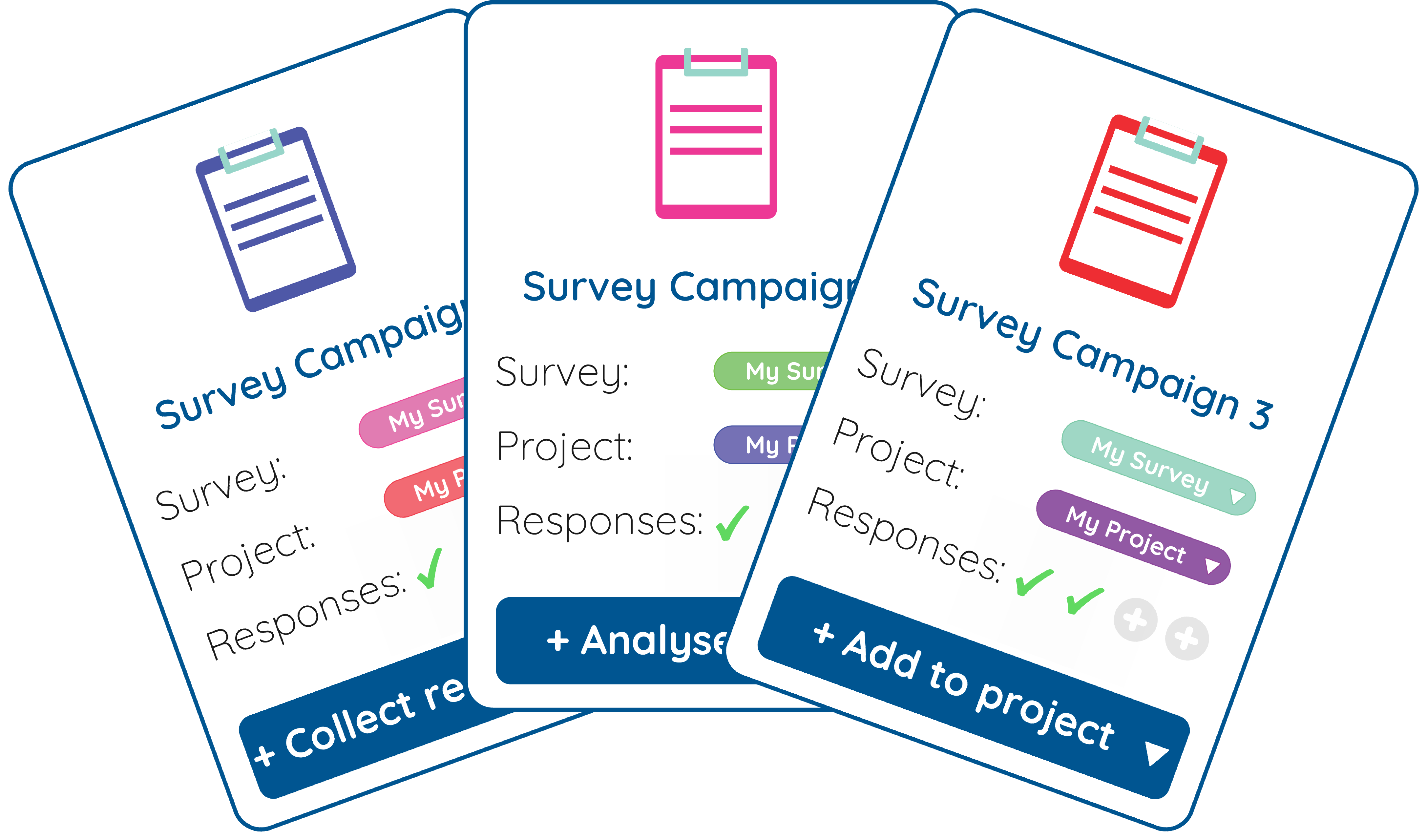
Understand how people’s answers change over time. Browse a table showing a row for each respondent and a column for each question time a question has been answered.
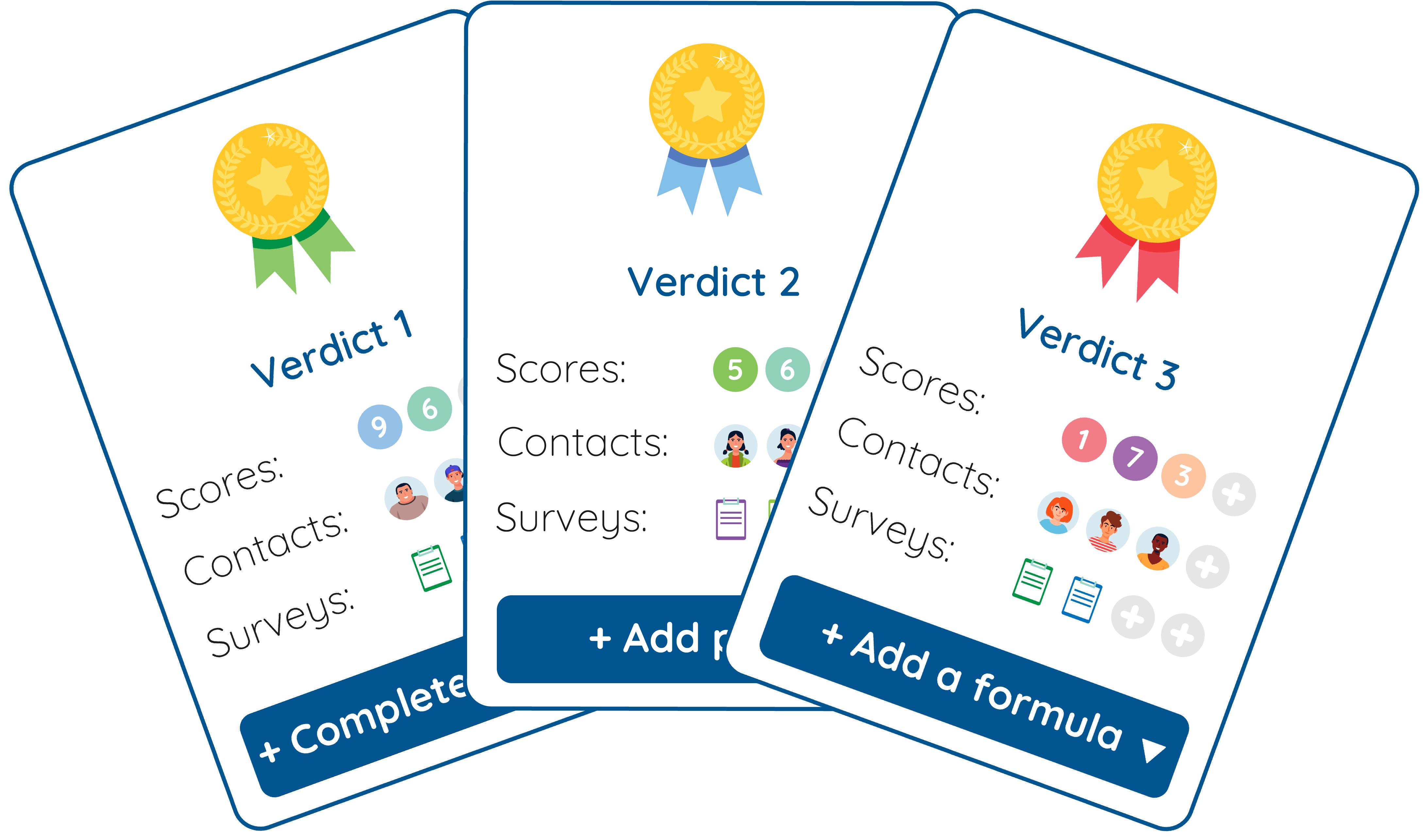
See the scores and verdicts from survey responses over time. See whose improved, worsened or stayed the same and the mean averages.
About
| Uploaded by: | Makerble Templates |
Three months after the course: how learning is being applied, early results, support and barriers, and retention.
Similar Surveys
-
<div>The Pastoral Counselling Center- Brief Adolescent Outcome Behaviour questionnaire ...
-
<div>This survey is ideal for schools, colleges, training providers, and career service...
-
<div>This survey is designed to capture the employer experience when engaging with appr...
Section – Applying What You Learned
Q1.
Applied Learning (single choice)
How much have you applied what you learned in this course to your work?
| 1, Not at all | 2 | 3 | 4 | 5 | 6 | 7 | 8 | 9 | 10, Completely |
Dropdown List used: Scale - Low to High - 10 options
Q2.
Frequency of Application (single choice)
How often do you use the skills or knowledge from this course?
| Daily | Weekly | Monthly | Occasionally | Haven't used it yet | Not applicable |
Dropdown List used: Frequency of Application - 6 options
Q3.
Specific Actions Taken
How many new actions or practices have you put in place as a result of the course?
Q4.
Confidence Applying Skills (single choice)
How confident do you feel applying the skills from this course in real situations?
| 1, Not at all | 2 | 3 | 4 | 5 | 6 | 7 | 8 | 9 | 10, Completely |
Dropdown List used: Scale - Low to High - 10 options
Q5.
Barriers to Application (unlimited multiple choice)
What has prevented you from applying what you learned?
| Too busy | No support from manager | Don't see how it applies | Forgotten content | Workplace culture doesn't support it | Other | Nothing - I've applied it |
Dropdown List used: Barriers to Application - 7 options
Q6.
Manager or Peer Observation (single choice)
Has your manager or a colleague noticed a change in how you work?
| Yes | Somewhat | No | Don't know |
Dropdown List used: Manager or Peer Observation - 4 options
Section – Early Results
Q7.
Describe the changes (Text)
This question will appear once within your story or survey response.
Section – Support and Barriers
Q8.
What would help apply learning (Text)
This question will appear once within your story or survey response.
Section – What You Remember
Q9.
Knowledge Retained (single choice)
How much of what you learned do you still remember and understand?
| 1, Not at all | 2 | 3 | 4 | 5 | 6 | 7 | 8 | 9 | 10, Completely |
Dropdown List used: Scale - Low to High - 10 options
Q10.
Specific Skill Confidence (1–10) (single choice)
How confident do you feel in the topic of this course?
| 1, Not at all | 2 | 3 | 4 | 5 | 6 | 7 | 8 | 9 | 10, Completely |
Dropdown List used: Scale - Low to High - 10 options
Collect survey responses

360°
 360°

Universal
 Universal

Tracked
 Tracked

Anonymised
Anonymised

Import
 Import

API
 API

Filled in by a Colleague: 1 contact at a time
Filled in by a Colleague: 1 contact at a time

Filled in by a Colleague: Several at once
 Filled in by a Colleague: Several at once

Filled in by a Colleague: Manual Headcount
 Filled in by a Colleague: Manual Headcount

Universal Manual Headcount
 Universal Manual Headcount

Multi-stage
 Multi-stage

Branded Portal
 Branded Portal

Automation
 Automation

360° Assessment
360° Assessment