 Interval Versions




Choose a Project
WASH (Sub-Saharan Africa): CLTS and ODF Progress is used by 0 projects across your organisations.

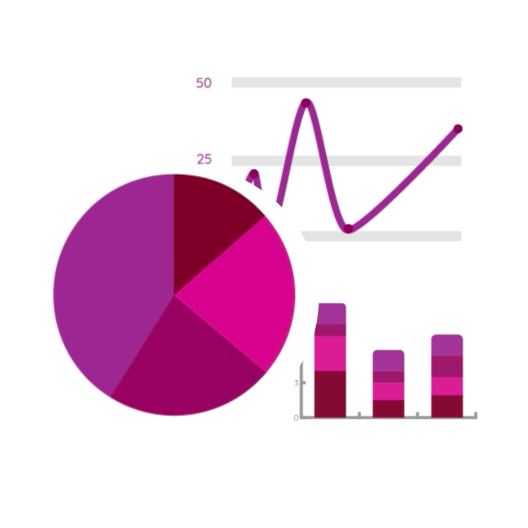
Explore bar charts, pie charts and outcome rings. Download graphs, export raw results and see tabulated responses to each question.
Understand how people’s answers change over time. Browse a table showing a row for each respondent and a column for each question time a question has been answered.
See the scores and verdicts from survey responses over time. See whose improved, worsened or stayed the same and the mean averages.
About
| Uploaded by: | Makerble Templates |
After triggering and then monthly until ODF, by the community facilitator: commitment, latrine progress and ODF verification.
Similar Surveys
-
use this when evaluating (XYSZ c=kidn of project)
-
<div>The Rosenberg Self-Esteem Scale is a 10-item self-report measure of global self-es...
-
<div>This scale measures individual subjective feelings of loneliness and social isolat...
Section – Triggering
Q1.
CLTS Triggering Completed (single choice)
Has CLTS triggering been completed in this community?
| Yes | No |
Dropdown List used: Yes / No - 2 options
Q2.
Date of triggering event (Date)
This question will appear once within your story or survey response.
Q3.
Community Committed to ODF Goal (single choice)
Has the community committed to becoming open defecation free?
| Yes | No |
Dropdown List used: Yes / No - 2 options
Q4.
Households committing to latrine construction (Number)
This question will appear once within your story or survey response.
Section – Monthly Progress
Q5.
Households with completed improved latrines (cumulative) (Number)
This question will appear once within your story or survey response.
Q6.
Households still practising open defecation (estimated) (Number)
This question will appear once within your story or survey response.
Q7.
Community Contributing to WASH (single choice)
Is the community contributing labour, materials or money to WASH?
| Yes | No |
Dropdown List used: Yes / No - 2 options
Q8.
Barriers or challenges (Text)
This question will appear once within your story or survey response.
Q9.
ODF Status (community level) (single choice)
ODF status of the community
| Not started | Triggered | In progress | Verified ODF | Certified ODF (where certification exists) | ODF reversed |
Dropdown List used: ODF Status - 6 options
Section – ODF Verification
Collect survey responses

360°
 360°

Universal
 Universal

Tracked
 Tracked

Anonymised
Anonymised

Import
 Import

API
 API

Filled in by a Colleague: 1 contact at a time
Filled in by a Colleague: 1 contact at a time

Filled in by a Colleague: Several at once
 Filled in by a Colleague: Several at once

Filled in by a Colleague: Manual Headcount
 Filled in by a Colleague: Manual Headcount

Universal Manual Headcount
 Universal Manual Headcount

Multi-stage
 Multi-stage

Branded Portal
 Branded Portal

Automation
 Automation

360° Assessment
360° Assessment